
 0
0
QNAP
60 –
70
of
74
Availability
Sort by
Advance Filters
QNAP
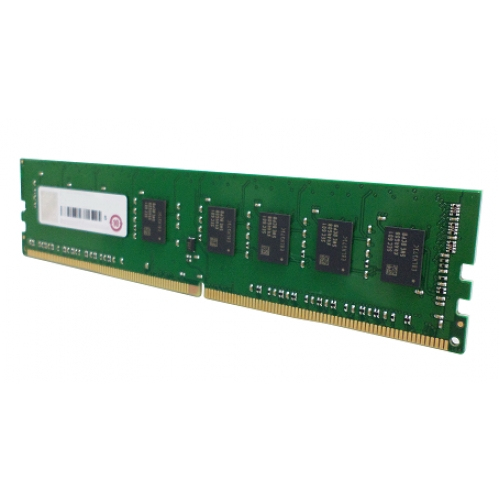
QNAP RAM-16GDR4A0-UD-2400 QNAP RAM-16GDR4A0-UD-2400 memory module 16 GB 1 x 16 GB DDR4 2400 MHz
Part# RAM-16GDR4A0-UD-2400
SKU S19454
Limited Availability


QNAP
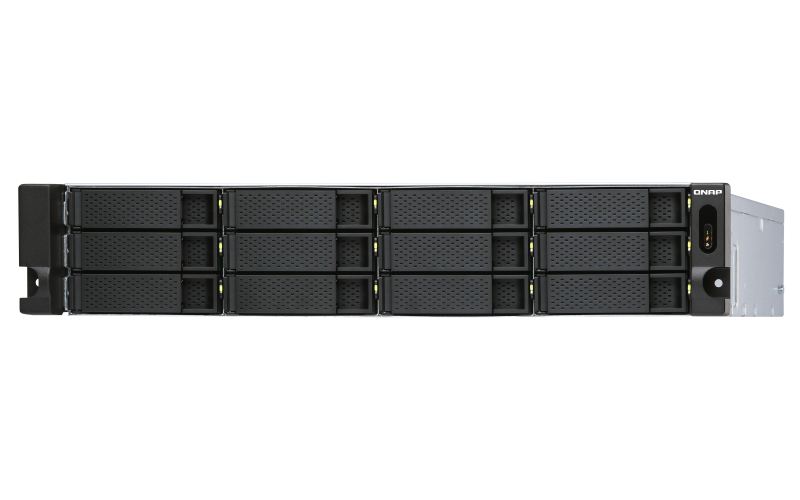
QNAP TL-R1200S-RP QNAP TL-R1200S-RP storage drive enclosure HDD/SSD enclosure Black, Grey 2.5/3.5"
TL-R1200S-RP Rackmount JBOD storage enclosure allows you to back up and expand your QNAP NAS, Windows® and Ubuntu® computers and servers. Features twelve 3.5-inch SATA 6Gb/s drive bays, the TL-R1200S-RP comes with a QXP PCIe card for connecting the enclosure using a SFF-8088 (or SFF-8644) cable. It provides reliable read/write performance for smooth storage and backup tasks.High-performance of TL SATA JBODThe TL SATA JBOD supports multi-lane SATA 6Gb/s transfer, and each SATA lane directly connects to a single SATA drive to help improve performance. With the 1-1 high-speed channel, the TL SATA JBOD delivers excellent transfer performance.Flexible Storage Configuration and ManagementThe TL-R1200S-RP provides software-controlled storage configuration for greater management flexibility. You can configure RAID and monitor JBOD enclosure and disk health with Storage & Snapshots when connected to a QTS or QuTS hero NAS, or with the QNAP JBOD Manager utility when connected to a computer.What you need to knowYou can connect your TL-R1200S-RP to Windows® and Ubuntu® computers and servers through the SFF-8088 (or SFF-8644) high-speed cable and use built-in utility to manage the RAID configuration.Intelligently Monitor JBOD Enclosure Status on PC and Servers with QNAP JBOD ManagerThe QNAP JBOD Manager is a desktop utility for monitoring the TL-R1200S-RP on Windows and Ubuntu computers. You can quickly obtain the disk statuses, JBOD information and health, view fan rotation speed, and check for firmware version updates. All device events are recorded, and will send desktop notifications when a system alert occurs.Flexibly Expand Connectivity with QXP PCIe CardsInstall an exclusive QXP PCIe card onto your QNAP NAS, Windows® or Ubuntu® PC and servers to connect the JBOD enclosure via SFF-8088 (or SFF-8644) cable, for easy and flexible storage expansion.Versatile usage scenarios to meet storage expansion needsThe TL-R1200S-RP meets many storage expansion requirements for the home and office. Below is a list of potential application scenarios:Scenario 1: Expand your NAS capacityThe TL-R1200S-RP provides an alternative method for users to expand their NAS storage capacity. By connecting the TL-R1200S-RP to their NAS and using Storage & Snapshots Manager in QTS or QuTS hero, users can easily configure and manage their storage expansion. The TL-R1200S-RP supports a variety of QNAP NAS storage and file management functions, allowing users to build storage pools, finding files with Qsirch, and organizing files with Qfiling.Scenario 2: External storage for your NASYou can use the TL-R1200S-RP to expand your NAS storage. You can select disks to create storage pools for expanding your NAS capacity, or you can treat each disk as an individual external storage space and use it as a removable drive for greater flexibility. Regardless of the mode you use, you can always use Storage & Snapshots Manager in QTS or QuTS hero to set up and manage your TL-R1200S-RP and use hard drive S.M.A.R.T. and Notification Center to check disk status anytime and anywhere.- Scenario 3: Expand the storage space of your Windows® and Ubuntu computers and serversYou can use your TL-R1200S-RP with Windows® and Ubuntu® computers and servers to expand more storage space. You can set up the RAID configuration of your TL-R1200S-RP to further secure data protection. Moreover, you can also use the single disk mode and format with exFAT file system for more convenient access and sharing of files between Windows® and Ubuntu® computers.Scenario 4: Third-party hardware RAID card for advanced protectionYou can install third-party hardware RAID cards on your TL-R1200S-RP for advanced hardware RAID 1, RAID 5, RAID 6, RAID 10, RAID 50, and RAID 60 protection and use Windows® utility software to manage your TL-R1200S-RP.TL-R1200S-RP Offers Better Performance Than Other USB and eSATA JBOD SolutionsThe TL-R1200S-RP features SFF-8088 (or SFF-8644) connectivity and multiple SATA 6Gb/s bays. This provides better sequential read performance and faster data transfer speeds than existing USB and eSATA expansion enclosures, while also being a more economical option compared to a QNAP REXP SAS enclosure.
Part# TL-R1200S-RP
SKU S19454
Limited Availability
QNAP
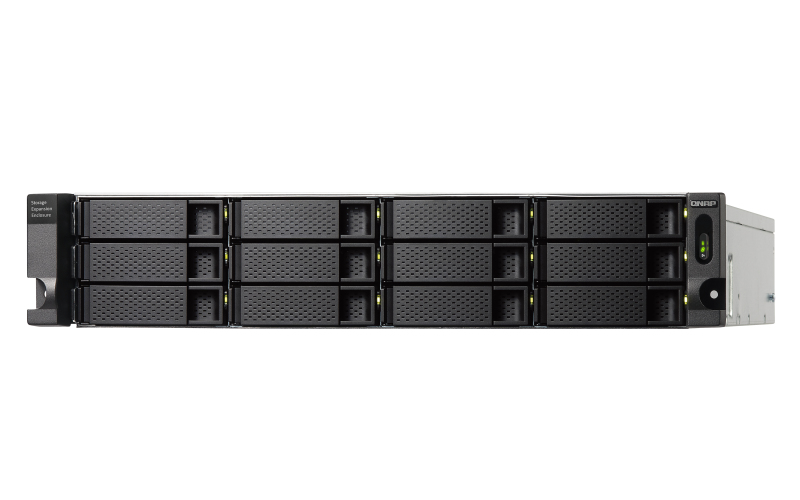
QNAP TL-R1200C-RP QNAP TL-R1200C-RP storage drive enclosure HDD/SSD enclosure Black, Grey 2.5/3.5"
The rackmount TL-R1200C-RP JBOD storage enclosure allows you to back up and expand your QNAP NAS, computers (supports Windows and Mac), and servers. The TL-R1200C-RP features twelve 3.5-inch SATA 6Gb/s drive bays with USB 3.2 Gen 2 (10 Gbps) Type-C connectivity to provide a fast and smooth expansion solution.Flexible storage configuration and managementThe TL-R1200C-RP provides software-controlled configurations for greater management flexibility. Users can configure RAID and monitor disk health using the QTS / QuTS hero Storage & Snapshots Manager on a QNAP NAS, or by using the QNAP JBOD Manager utility on their computer.What you need to knowYou can connect your TL-R1200C-RP to Windows®, Mac®, and Ubuntu® computers through the USB interface and use built-in utility to manage the RAID configuration.Intelligently monitor JBOD enclosure status on PC and servers with QNAP JBOD Manager The QNAP JBOD Manager is a desktop utility for monitoring the TL-R1200C-RP on Windows® and Mac® computers. You can quickly obtain and view information about the JBOD status, health, fan rotation speed, and check for firmware version updates. All device events are recorded, and QNAP JBOD Manager will automatically send system alert notifications to your desktop.JBOD migration speeds up remote file transfersMigrating a large number of small files or a single large data file by network environment can be time-consuming and consume significant network bandwidth that causes decreased work efficiency. The TL-R1200C-RP supports remote file transfer. All you have to do is set up the RAID configuration and store a large number of files. Then you can move the TL-R1200C-RP to another place and connect it with the computer or NAS to experience the device’s simple plug and play feature and fast data migration.Use TL-R1200C-RP as a high-capacity disk drive reader by setting up single disk modeYou can treat each disk in your TL-R1200C-RP as an individual storage space, and also use it as a removable drive. It can function like a high-capacity disk drive reader. When one of disk reaches data storage limitation, you can remove it and put it into a dry box. Then swap a different disk into the TL-R1200C-RP empty drive slot. After that, you can install the disk that reached full data capacity into the TL-R1200C-RP and connect it with a computer or NAS for direct file access.Versatile usage scenarios to meet storage expansion needsThe TL-R1200C-RP meets many storage expansion requirements for the home and office. Below is a list of potential usage scenarios:Scenario 1: Expand your NAS capacityThe TL-R1200C-RP provides an alternative method for users to expand their NAS storage capacity. By connecting the TL-R1200C-RP to their NAS and using the Storage & Snapshots Manager in QTS or QuTS hero, users can easily configure and manage their storage expansion. The TL-R1200C-RP supports a variety of QNAP NAS storage and file management functions, allowing users to build storage pools, finding files with Qsirch, and organizing files with Qfiling.Scenario 2: External storage for your NASYou can use the TL-R1200C-RP to expand your NAS storage. You can select disks to create storage pools for expanding your NAS capacity, or you can treat each disk as an individual external storage space and use it as a removable drive for greater flexibility. Regardless of the mode you use, you can always use Storage & Snapshots Manager in QTS or QuTS hero to set up and manage your TL-R1200C-RP and use hard drive S.M.A.R.T. and Notification Center to check disk status anytime and anywhere.Scenario 3: Expand the storage space of your Windows, Mac, and Ubuntu computerYou can use your TL-R1200C-RP with Windows®, Mac®, and Ubuntu® computers to expand more storage space. You can set up the RAID configuration of your TL-R1200C-RP to further secure data protection. Moreover, you can also use the single disk mode and format with the exFAT file system for more convenient access and sharing of files between Windows® and Ubuntu® computers.High-speed USB transferTThe TL-R1200C-RP features high-speed USB 3.2 Gen 2 Type-C connectivity and built-in USB Attached SCSI Protocol (UASP) to provide convenient fast file sharing and intensive data transfer. The TL-R1200C-RP not only provides you higher file transfer performance than traditional USB interfaces but offers a more cost-effective option than REXP SAS JBOD.
Part# TL-R1200C-RP
SKU S19454
Limited Availability
QNAP
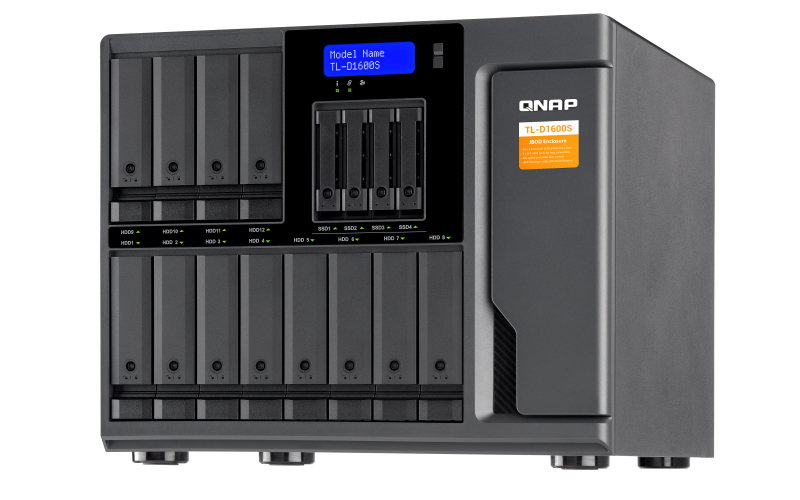
QNAP TL-D1600S QNAP TL-D1600S storage drive enclosure HDD/SSD enclosure Black, Grey 2.5/3.5"
TL-D1600S JBOD storage enclosure allows you to back up and expand your QNAP NAS, Windows® and Ubuntu® computers and servers. The TL-D1600S features sixteen 3.5-inch SATA 6Gb/s drive bays and comes with a QXP PCIe card for connecting the enclosure using a SFF-8088 (or SFF-8644) cable. It provides reliable read/write performance for smooth storage and backup tasks.High-performing TL SATA JBODThe TL SATA JBOD supports multi-lane SATA 6Gb/s transfer, and each SATA lane directly connects to a single SATA drive to help improve performance. With the 1-1 high-speed channel, the TL SATA JBOD delivers excellent transfer performance.Flexible Storage Configuration and ManagementThe TL-D1600S provides software-controlled storage configuration for greater management flexibility. You can configure RAID and monitor JBOD enclosure and disk health with Storage & Snapshots when connected to a QTS or QTS hero NAS, or with the QNAP JBOD Manager utility when connected to a computer.What you need to knowYou can connect your TL-D1600S to Windows and Ubuntu computers through SFF-8088 (or SFF-8644) high-speed cable and use built-in utility to manage RAID configuration.Intelligently Monitor JBOD Enclosure Status on PC and Servers with QNAP JBOD ManagerThe QNAP JBOD Manager is a desktop utility for monitoring the TL-D1600S on Windows and Ubuntu computers. You can quickly obtain the disk statuses, JBOD information and health, view fan rotation speed, and check for firmware version updates. All device events are recorded, and will send desktop notifications when a system alert occurs.Flexibly Expand Connectivity with QXP PCIe CardsInstall an exclusive QXP PCIe card onto your QNAP NAS, Windows or Ubuntu PC to connect the JBOD enclosure via SFF-8088 (or SFF-8644) cable , for easy and flexible storage expansion.Versatile usage scenarios to meet storage expansion needsThe TL-D1600S meets many storage expansion requirements for the home and office. Below is a list of potential application scenarios:Scenario 1: Expand your NAS capacityThe TL-D1600S provides an alternative method for users to expand their NAS storage capacity. By connecting the TL-D1600S to their NAS and using Storage & Snapshots Manager in QTS or QTS hero, users can easily configure and manage their storage expansion. The TL-D1600S supports a variety of QNAP NAS storage and file management functions, allowing users to build storage pools, finding files with Qsirch, and organizing files with Qfiling.Scenario 2: External storage for your NASYou can use the TL-D1600S to expand your NAS storage. You can select disks to create storage pools for expanding your NAS capacity, or you can treat each disk as an individual external storage space and use it as a removable drive for greater flexibility. Regardless of the mode you use, you can always use Storage & Snapshots Manager in QTS or QTS hero to set up and manage your TL-D1600S and use hard drive S.M.A.R.T. and Notification Center to check disk status anytime and anywhere.Scenario 3: Expand the storage space of your Windows and Ubuntu computersYou can use your TL-D1600S to expand the storage space of Windows and Ubuntu computers. You can set up the RAID configuration of your TL-D1600S to further secure data protection. Moreover, you can also use the single disk mode and format with exFAT file system for more convenient access and sharing of files between Windows® and Ubuntu® computers.Scenario 4: Third-party hardware RAID card for advanced protectionYou can install third-party hardware RAID cards on your TL-D1600S for advanced hardware RAID 1, RAID 5, RAID 6, RAID 10, RAID 50, and RAID 60 protection and use Windows utility software to manage your TL-D1600S.TL-D1600S Offers Better Performance Than Other USB and eSATA JBOD SolutionsThe TL-D1600S features SFF-8088 (or SFF-8644) connectivity and multiple SATA 6Gb/s bays. This provides better sequential read performance and faster data transfer speeds than existing USB and eSATA expansion enclosures, while also being a more economical option compared to a QNAP REXP SAS enclosure.
Part# TL-D1600S
SKU S19454
Limited Availability
QNAP
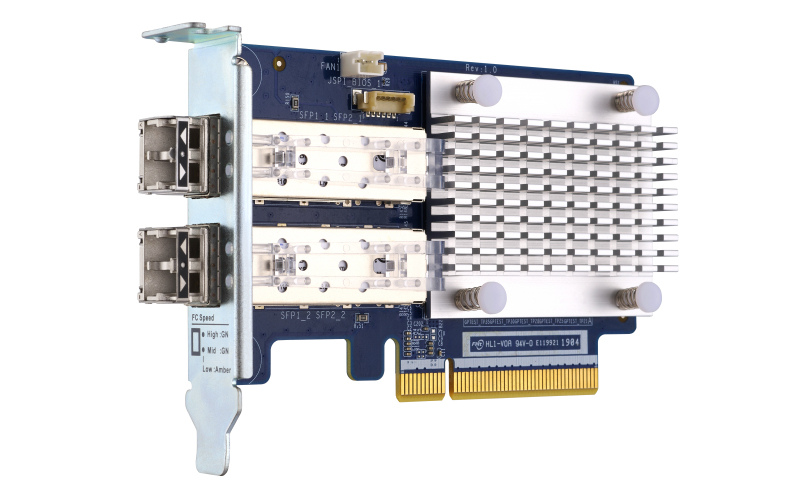
QNAP QXP-16G2FC QNAP QXP-16G2FC network card Internal Fiber 14025 Mbit/s
Common Fibre Channel SAN (Storage Area Networks) are closed network environments, and their devices are often expensive while lacking deployment flexibility. QNAP introduces dual-port 16Gb/32Gb Fibre Channel expansion cards that feature high performance, reliability, security, and energy efficient Fibre Channel. With a QNAP Fibre Channel card in your QNAP NAS, your NAS can be added to an existing SAN environment at an affordable price point to fulfill requirements for high-performance storage and backup.QNAP NAS as a Fibre Channel SAN storage solutionReplacing Fibre Channel SAN environments can be expensive and time consuming. By installing a PCIe-based Fibre Channel card to a QNAP NAS, your existing SAN environment gains a budget-friendly storage or backup solution. Not only is a QNAP NAS more affordable than typical SAN devices, but it also provides rich enterprise features to make storage applications more efficient - including LUN snapshots, Qtier auto-tiering, SSD cache acceleration, hybrid cloud backup solutions, and much more. The Fibre-Channel-ready QNAP NAS is a unified storage solution that provides SAN, NAS, and cloud storage features with higher cost-effectiveness and application flexibility.Manage Fibre Channel connection using iSCSI & Fibre Channel appUse the QTS iSCSI & Fibre Channel app to set the QNAP NAS as a Fibre Channel Target, and add the NAS to your SAN environment with WWPN addresses. You can also take advantage of the Fibre Channel Switch that allows multiple connection paths to have multiple servers share the NAS. In addition, the LUN Masking and Port Binding features provide an additional layer of security for your data.
Part# QXP-16G2FC
SKU S19454
Limited Availability
QNAP
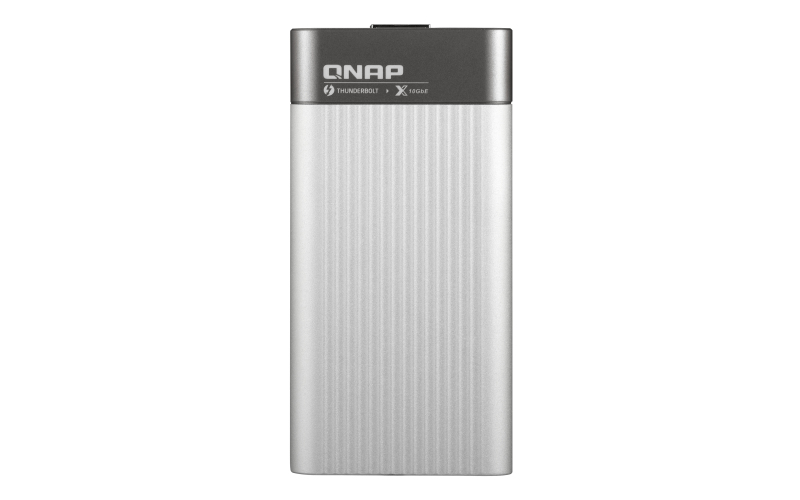
QNAP QNA-T310G1T QNAP QNA-T310G1T interface cards/adapter RJ-45
The QNAP QNA series is a cost-effective Thunderbolt 3 to 10GbE adapter that empowers your Mac® or Windows® computers with blazing-fast 10GbE network connectivity using a Thunderbolt 3 type-C port. With the portable QNA series adapter, a 10GbE network can be created between your Thunderbolt 3 computer and another 10GbE-capable device or NAS to facilitate high-speed data transfer for large files and help to streamline collaborative workflows to improve efficiency.Enable blazing-fast 10GbE connectivity for your MacWith the QNA series adapters, you can connect your Mac and Windows® computers to a 10GbE network to enjoy access speeds of up to 1069 MB/s. With both Thunderbolt™ 3 and 10GbE connectivity, your data transfers will be faster than ever!10GbE data transfer that media professionals needAs video resolutions move from 1080p, to 4K, 8K (and beyond) media creators are struggling with the storage and network requirements needed for editing huge multimedia files. The QNA series comes with two models. The QNA-T310G1T features a Thunderbolt 3 to 10GbE Multi-Gigabit (10G/5G/2.5G/1G/100M) port, and the QNA-T310G1S features one 10GbE SFP+ port, allowing you to easily add 10GbE connectivity to any Thunderbolt 3 device. Coupled with a QNAP 10GbE switch, a budget-friendly 10GbE environment can be created for creative studios to benefit from the incredible speed and bandwidth that 10GbE provides.Effortless setupSimply connect a QNA adapter to your Mac or Windows® computer using the included Thunderbolt 3 cable and connect the adapter to a 10GbE-capable switch, NAS, or other device using a 10GbE cable (RJ45 Cat 5e/Cat 6a cable or above or a SFP+ DAC).
Part# QNA-T310G1T
SKU S19454
Limited Availability
QNAP
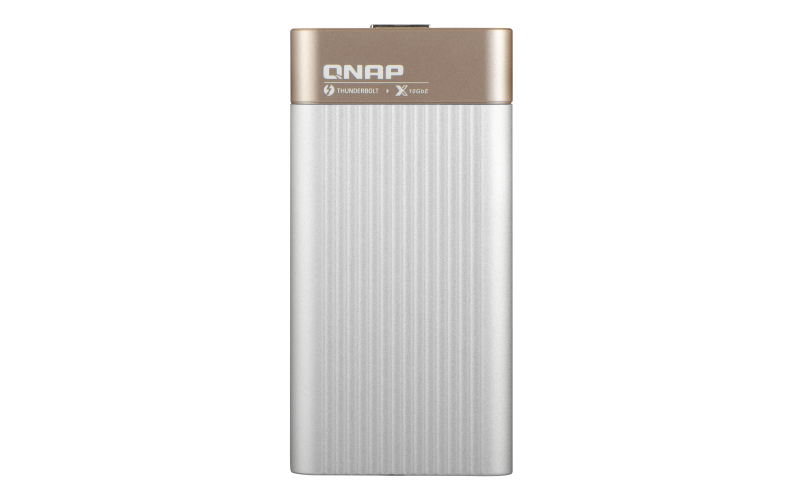
QNAP QNA-T310G1S QNAP QNA-T310G1S interface cards/adapter SFP+
The QNAP QNA series is a cost-effective Thunderbolt 3 to 10GbE adapter that empowers your Mac® or Windows® computers with blazing-fast 10GbE network connectivity using a Thunderbolt 3 type-C port. With the portable QNA series adapter, a 10GbE network can be created between your Thunderbolt 3 computer and another 10GbE-capable device or NAS to facilitate high-speed data transfer for large files and help to streamline collaborative workflows to improve efficiency.Enable blazing-fast 10GbE connectivity for your MacWith the QNA series adapters, you can connect your Mac and Windows® computers to a 10GbE network to enjoy access speeds of up to 1069 MB/s. With both Thunderbolt™ 3 and 10GbE connectivity, your data transfers will be faster than ever!10GbE data transfer that media professionals needAs video resolutions move from 1080p, to 4K, 8K (and beyond) media creators are struggling with the storage and network requirements needed for editing huge multimedia files. The QNA series comes with two models. The QNA-T310G1T features a Thunderbolt 3 to 10GbE Multi-Gigabit (10G/5G/2.5G/1G/100M) port, and the QNA-T310G1S features one 10GbE SFP+ port, allowing you to easily add 10GbE connectivity to any Thunderbolt 3 device. Coupled with a QNAP 10GbE switch, a budget-friendly 10GbE environment can be created for creative studios to benefit from the incredible speed and bandwidth that 10GbE provides.Effortless setupSimply connect a QNA adapter to your Mac or Windows® computer using the included Thunderbolt 3 cable and connect the adapter to a 10GbE-capable switch, NAS, or other device using a 10GbE cable (RJ45 Cat 5e/Cat 6a cable or above or a SFP+ DAC).
Part# QNA-T310G1S
SKU S19454
Limited Availability
QNAP
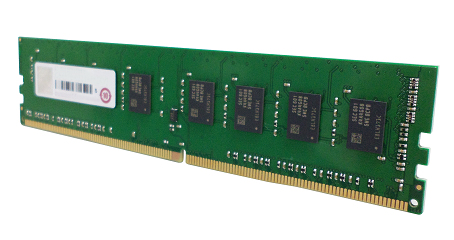
QNAP RAM-16GDR4ECT0-UD-3200 QNAP RAM-16GDR4ECT0-UD-3200 memory module 16 GB 1 x 16 GB DDR4 3200 MHz ECC
Part# RAM-16GDR4ECT0-UD-3200
SKU S19454
Limited Availability
QNAP
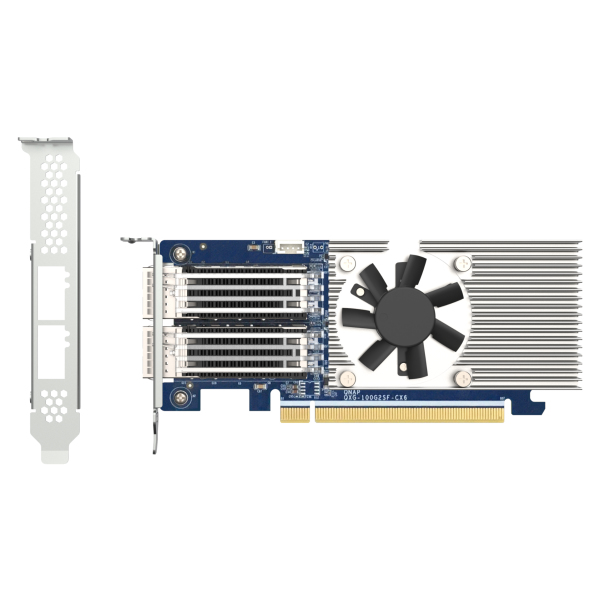
QNAP QXG-100G2SF-CX6 QNAP QXG-100G2SF-CX6 network card Internal Fiber 100000 Mbit/s
Part# QXG-100G2SF-CX6
SKU S19454
Limited Availability
QNAP
QNAP RAM-32GDR4K0-SO-3200 QNAP RAM-32GDR4K0-SO-3200 memory module 32 GB DDR4 3200 MHz
Part# RAM-32GDR4K0-SO-3200
SKU S19454
Limited Availability

Item(s) added to cart

